How to Convert an Estimate to an Invoice, Step by Step

How to Convert an Estimate to an Invoice, Step by Step

To convert an estimate to an invoice, wait until the customer has approved the work (or you have finished it), copy the estimate’s line items into a new invoice, then change what an invoice needs: a new invoice number, today’s date, a due date, payment terms and the final amounts. Check the totals against what you actually did, then send it. Most invoicing tools do the copying with one button. The checking is still on you.
This guide covers the full process for contractors and tradespeople: when to convert, what to review, how to bill in stages, how to fix mistakes, and how to stop retyping the same job details three times.
HechitoKeep Job Details Ready for InvoicingHechito captures customer conversations and job details through voice and images, helping contractors turn job records into organized documentation.VisitTL;DR
- Convert an estimate only after the customer approves it and, for single-bill jobs, after the work is done and matches what was agreed.
- An estimate is a proposal. An invoice is a financial record and a request for payment, so it needs its own number, date, due date and terms.
- Compare the invoice with the estimate line by line. Anything that differs (quantities, materials, extras) should have been cleared with the customer first.
- For bigger jobs, bill in stages from the same estimate instead of waiting for one big invoice at the end.
- Capture changes, photos and approvals on the job so the invoice is a summary of records you already have.
Table of Contents
- Estimate vs. invoice: what actually changes
- When to convert an estimate to an invoice
- Step-by-step: convert an estimate to an invoice
- The pre-send checklist
- Converting for progress billing
- What to do when the numbers change
- Keep job details organized so invoices write themselves
- Our perspective
- Let the job site do the paperwork
- FAQ
- Sources
Estimate vs. invoice: what actually changes
An estimate lays out scope, pricing and terms before work begins, and it creates no financial transaction. An invoice does: it becomes part of your financial records, and it is what the customer pays against. Quicken’s documentation on estimates draws the same line, and it is a useful way to think about the conversion. You are not renaming a document. You are turning a proposal into a bill.
That is why a straight copy is rarely enough. The estimate contains language that does not belong on an invoice:
- “This estimate is valid for 30 days”
- Exclusions and assumptions (“does not include permit fees”)
- Project timelines and start dates
- An estimate number instead of an invoice number
If you want a refresher on how the two documents differ before the job even starts, our piece on preventing estimate vs. quote disputes covers the wording that keeps customers from treating a rough number as a fixed price.
When to convert an estimate to an invoice
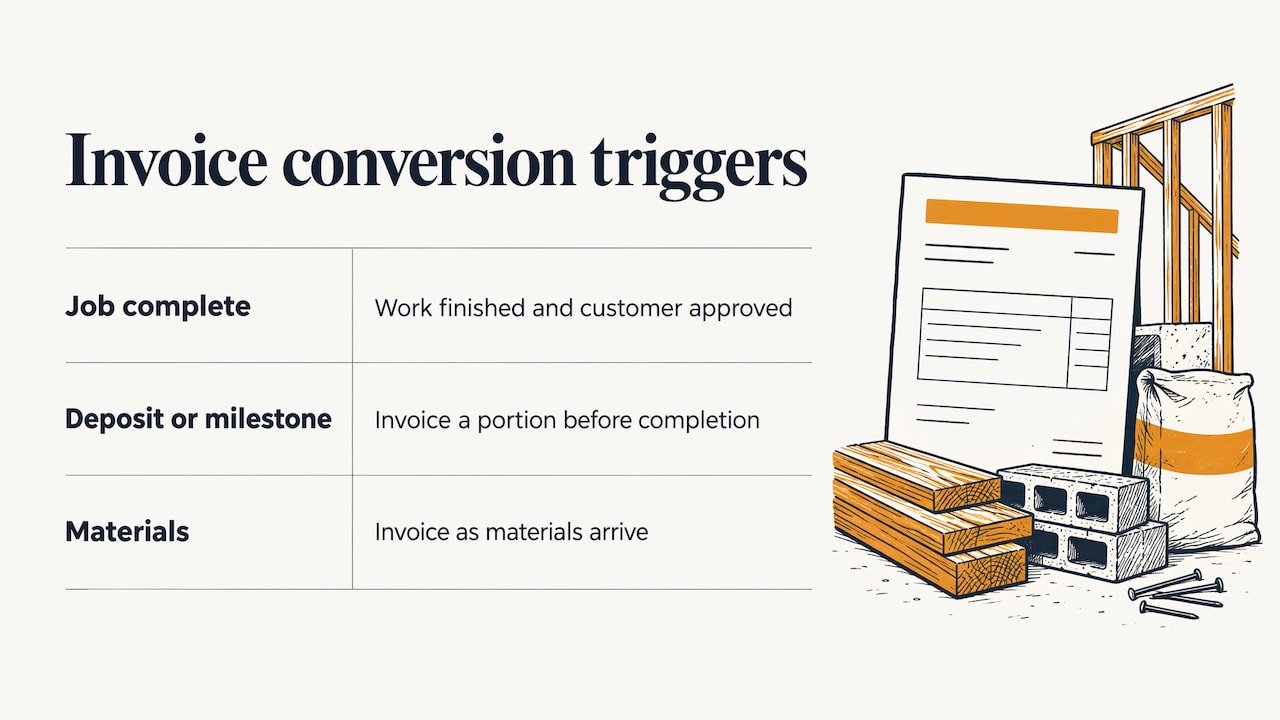
There are three common triggers, and the right one depends on the job.
1. The job is done and approved. For a repair, a service call or a short install, you convert when the work is finished and the customer has signed off. This is the simplest case. Reconcile what was delivered against what was quoted: items, quantities, labor hours, taxes, discounts and any fees. Stripe’s guidance on converting estimates recommends exactly this order: convert when the work is complete and approved, but reconcile the details first.
2. A deposit or first milestone is due. On larger jobs you often invoice before the work is complete. The approved estimate is the basis, but you bill only a portion. More on that below.
3. Materials are ordered or delivered. Some contractors invoice for materials as they arrive, especially on custom orders. The same approved estimate supports the bill.
Whichever applies, think about how the customer will pay before you hit send. A clear path to payment (card, ACH, check, or a link) shortens the time between invoice and money in the bank. If you take cards on job sites, a provider that understands payment processing for trade services can make that step simpler.
Step-by-step: convert an estimate to an invoice
The exact buttons differ between apps, but the sequence is the same almost everywhere. In general you open your list of estimates, pick the approved one, choose a convert or generate-invoice action, review the result, and send. Here is the full workflow, including the parts the software will not do for you.
1. Confirm the approval
Before anything else, make sure the customer approved the estimate in a way you can prove: a signature, a reply to your email, a text message, or an approval click in your app. Verbal “sounds good” on the driveway is the weakest form. If that is all you have, send a short written confirmation and keep the reply.
2. Compare the estimate with the work performed
Open the estimate beside your job notes, receipts and photos. Look for:
- Materials that cost more or less than quoted
- Extra hours or a shorter job
- Work the customer added or removed
- Surprises found behind a wall or under a floor
Anything that changed the price should already be documented as a change order or a written note. If it is not, get it in writing now, before the invoice goes out, not after.
3. Start the conversion
Use your tool’s convert or generate-invoice action. A good tool carries over customer details, your business details, logo, and the itemized services and prices. It should also keep the original estimate for reference. Once converted, the invoice is its own record, so edits you make to it do not rewrite the estimate.
4. Give the invoice its own identity
Replace the estimate number with a unique invoice number, set the issue date to today and add a due date. A consistent numbering format makes bookkeeping and customer questions much easier. We lay out formats that work in invoice numbering for construction.
5. Set payment terms and methods
State when payment is due (due on receipt, net 15, net 30, or tied to a milestone), what you accept, and any late fee you have agreed to in advance. Vague terms are one of the main reasons invoices sit unpaid or get bounced back for clarification. Our contractor payment terms checklist walks through the wording line by line.
6. Strip the estimate-only language
Remove validity periods, exclusion clauses meant for the proposal stage, and project timelines. Keep notes that still matter, such as warranty details or a reference to the approved scope.
7. Recheck taxes and the total
Recalculate sales tax if it applies to your trade and state, confirm discounts, and read the total due out loud. A wrong total is the most expensive typo in your business.
8. Preview, send and track
Preview the invoice as the customer will see it, then send it by email, text or your billing platform. Note the date sent. If it is not paid by the due date, your follow-up process starts. Our invoice aging process guide explains how to chase payment in stages without souring the relationship.
For a deeper look at the whole chain from approval to payment, see our seven-step estimate to invoice workflow.
The pre-send checklist
Print this or keep it in your notes. Run it every time before an invoice goes out.
| Check | What to look for |
|---|---|
| Invoice number | Unique, in your standard format, not the estimate number |
| Customer details | Correct name, billing address, contact email |
| Job reference | Site address or job name that matches the estimate |
| Line items | Descriptions, quantities and prices match the approved work |
| Changes | Each change tied to an approved change order or written note |
| Taxes, fees, discounts | Correct rates and amounts applied |
| Total due | Matches your own math, minus any deposit already paid |
| Dates | Issue date is today, due date is set |
| Terms | Payment terms, accepted methods, late fee if agreed |
| Notes | Warranty or special instructions, no leftover estimate language |
That list follows the elements Stripe’s guidance says an invoice should contain, plus the contractor-specific items we see cause the most disputes: the change trail and the job reference.
Converting for progress billing
On a kitchen remodel, a roof replacement or any job that runs for weeks, waiting until the end to invoice strains your cash. Progress billing solves this: you divide one approved estimate into several invoices.
There are usually three ways to split it:
- A percentage of the total (for example, a deposit at approval, then stages as work advances)
- A fixed amount for a milestone
- Custom amounts per line, when one line item (say, cabinets) is complete and another is not
Many invoicing tools support this when the feature is switched on, and the estimate stays linked to every invoice that comes from it. Whatever you use, keep a running tally: estimate total, amount billed so far, amount remaining. That way the final invoice is never a guessing game.
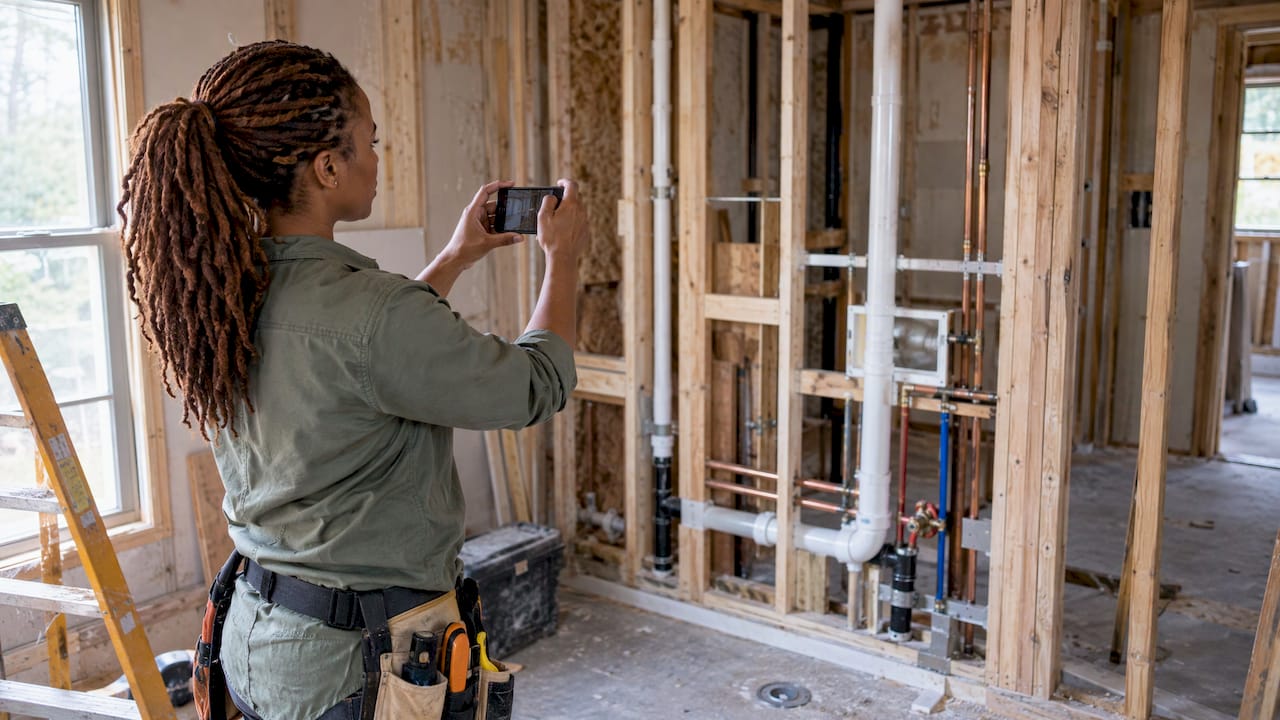
Field photos make staged billing far easier to defend. A photo of finished rough-in before the drywall goes up is better evidence than any note. We cover this in construction progress billing with field photos and construction payment schedules.
If the job is billed by hours and materials instead of a fixed price, the logic changes: the estimate is a forecast and the invoice reflects actuals. See our guide to time and materials invoicing.
What to do when the numbers change
Real jobs drift from their estimates. Here is how to handle it without damaging trust.
Before the work. If you realize the estimate was wrong, revise it and get the new version approved before starting. This is the cleanest fix.
During the work. When you find something that changes the job, such as rot, a code issue or a customer upgrade, write a change order. The best ones describe the condition found, the proposed work, the price, and the effect on the schedule, and they get approval before the changed work begins. Documentorium’s guidance for contractors makes the same point: invoices should reference the approved work and the approved changes.
On the invoice. Show an approved extra as its own line, referencing the change order, rather than quietly inflating an existing line. The customer sees where each dollar came from.
After you send it. Tools differ here, so check how yours behaves. In many, an unpaid invoice can be edited and resent. Once a payment is applied, the fix is usually a credit and a replacement invoice. Some systems treat a conversion as final, in which case you duplicate the estimate and start again. Know which kind you have before you convert, not after.
A few habits cut corrections to a minimum:
- Tell the customer early about any price increase, ideally the day you spot it.
- Get substantial increases confirmed in writing before you invoice.
- Keep estimate, change orders and invoice numbers cross-referenced.
Keep job details organized so invoices write themselves
Most conversion problems start long before the invoice. The estimate was thin, the notes were scattered, or the approval lives in a text thread nobody can find.
A reliable job record keeps a few things together. According to Documentorium, a good quote record preserves the customer and job identity, the estimator, the date, the quote number and revision, the included work, the pricing basis, assumptions, exclusions, commercial terms and how the customer accepted. When all of that sits in one place, conversion is a ten-minute task.
Three habits help the most:
- Write a precise scope. Vague scope invites arguments over what was included. Our scope of work checks for contractors show how to tighten it.
- Start from a solid template. A good estimate carries the fields the invoice will need later. See construction estimate templates.
- Capture details on site. Photos, material receipts and customer decisions are easiest to record at the moment they happen, not at 9 p.m. at the kitchen table.
Our perspective
We built Hechito because we kept seeing the same pattern: a tradesperson does great work all day, then loses the evening to paperwork. The estimate is in one app, the notes are in a text thread, the photos are in a camera roll, and the invoice gets typed from memory.
Converting an estimate to an invoice is easy when the conversion is just a button. The hard part is everything feeding it: the conversation where the customer added a second outlet, the photo of the damaged joist, the receipt from the supply house. If those never get captured, the invoice is a reconstruction, and reconstructions leave money on the table.
That is why we think the answer is not a better form but less typing. Our approach is to capture the job as it happens, by voice and photo, in English, Spanish or both, and let the quote, the invoice and the follow-up come from that record. Our own claim is that this removes the after-hours admin, and it is what we designed the product to do.
If you take one thing from this guide, make it this: the invoice is only as accurate as the notes behind it. Fix the notes, and the invoice takes care of itself.
Francisco
Let the job site do the paperwork
If you are tired of retyping estimates into invoices, Hechito is built for that. Chalán, our voice-first helper, captures quotes and invoices from what you say and photograph on the job, so details are already organized when it is time to bill. It works in English and Spanish, and documents come out in the language your customer needs. Godínez matches your bank activity to your jobs, and Lupita answers the phone for your business.
See how it works on our contractor invoicing and estimate app page, meet the full crew, or look at pricing.
FAQ
Can I convert an estimate to an invoice before the customer approves it?
Technically many tools allow it, but you should not send it. An unapproved estimate is a proposal, and invoicing against it invites disputes. Wait for written approval, even if it is a short email reply, then convert.
Does converting an estimate delete the original?
Usually not. In most tools the estimate stays on file, linked to the invoice, and its status changes to something like invoiced or closed. Edits you make to the invoice generally do not change the estimate, which is useful when you need to show what was originally agreed.
Can I send more than one invoice from a single estimate?
Yes, if your tool supports progress or staged billing. You split the estimate by percentage, fixed amount or custom amounts per line, and each invoice draws down the total. Track what has been billed and what remains so the last invoice is correct.
What should I do if the final cost is different from the estimate?
Talk to the customer before you send the invoice. Document approved changes as a change order and show them as separate lines on the invoice. A customer who has seen and approved the change rarely disputes the total.
What should my invoice include that my estimate did not?
A unique invoice number, the issue date, a due date, payment terms, accepted payment methods and the final amount due. Remove estimate-only language such as validity periods and project timelines.
Sources
- Creating and Managing Estimates, Quicken Simplifi
- Estimate vs. invoice: How to convert estimates to invoices, Stripe
- Written Quotes for Contractors: Capture the Approval, Documentorium
- Payment Processing for Trade Services
Recommended
This is the paperwork Hechito does for you — while you talk.